To view the list of available resources for an MCP server, use the **MCP: Browse Resources** command or use the **MCP: List Servers** > **Browse Resources** command to view resources for a specific server.
MCP tools can return resources as part of their response. You can view or save these resources to your workspace by selecting **Save** or by dragging and dropping the resource to the Explorer view.
## Use MCP prompts
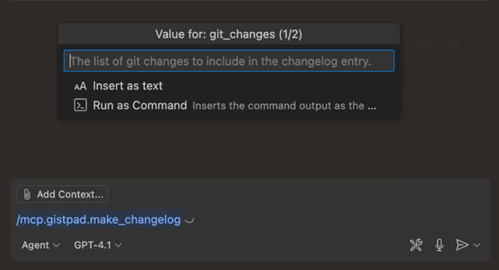
MCP servers can provide preconfigured prompts for common tasks, so you don't have to type an elaborate chat prompt. You can directly invoke these prompts in the chat input box by typing followed by the prompt name, formatted as . Optionally, the prompt might ask you for extra input parameters.`/` `mcp.servername.promptname`
## Use MCP elicitations
MCP servers can request extra input from you through elicitations. When an MCP server needs more information to complete a task, it can prompt you for specific details, such as confirmations, configuration values, or other parameters required for the operation.
When an MCP server sends an elicitation request, VS Code presents you with a dialog or input field where you can provide the requested information. This allows MCP servers to gather necessary data dynamically without requiring all configuration to be set up in advance.
As you add more MCP servers, the list of tools can become long. This can make it tedious to manage individual tools, for example when you want to define a [reusable prompt file](https://code.visualstudio.com/docs/copilot/customization/prompt-files) or a [custom chat mode](https://code.visualstudio.com/docs/copilot/customization/custom-chat-modes).
To help you manage tools, you can group related tools into a tool set. A tool set is a collection of individual tools that you can refer to as a single entity. A tool set can contain built-in tools, MCP tools, or tools provided by extensions.
Learn more about how to [create and use tool sets in VS Code](https://code.visualstudio.com/docs/copilot/chat/chat-agent-mode#_define-tool-sets).
## Manage MCP servers
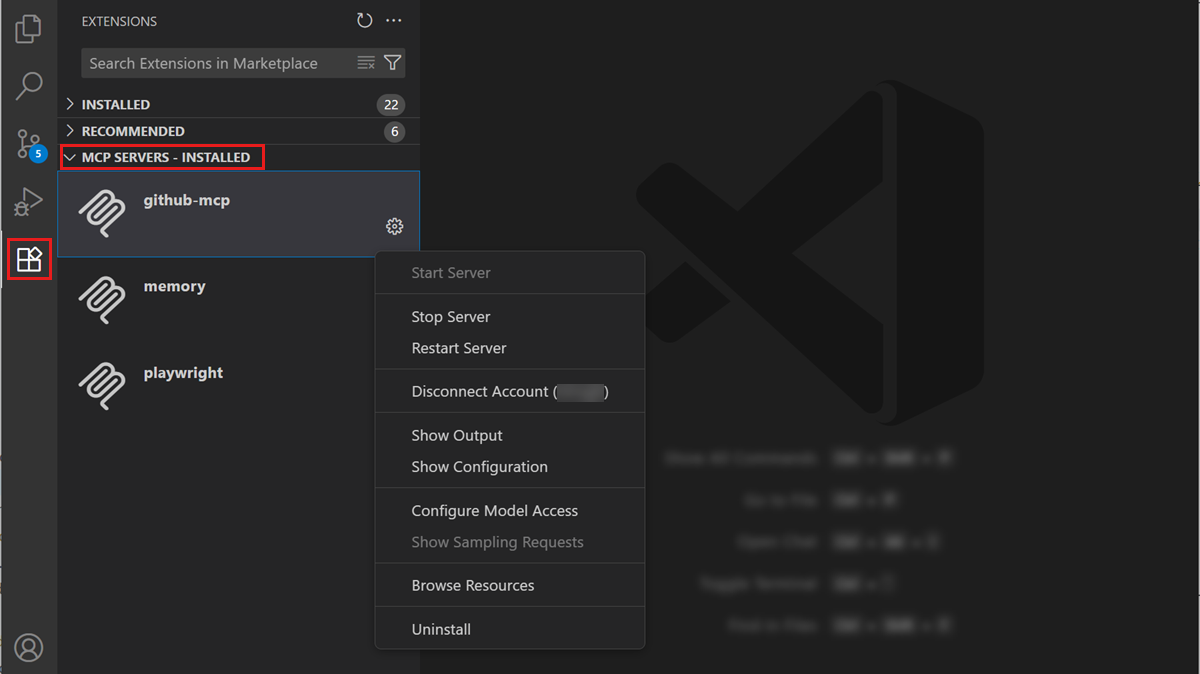
You can perform various actions on the installed MCP servers, such as starting or stopping a server, viewing the server logs, uninstalling the server, and more.
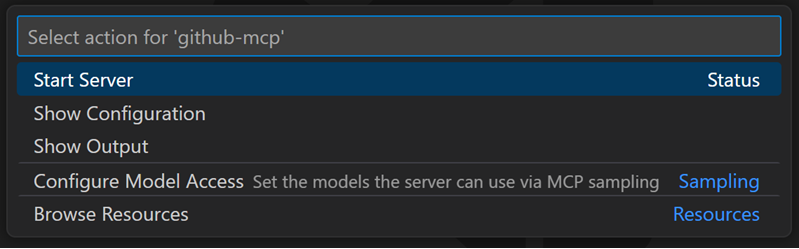
To perform these actions on an MCP server, use either of these options:
- Right-click on the server in the **MCP SERVERS - INSTALLED** section or select the gear icon
- Open the configuration file and access the actions inline in the editor (lenses) `mcp.json`
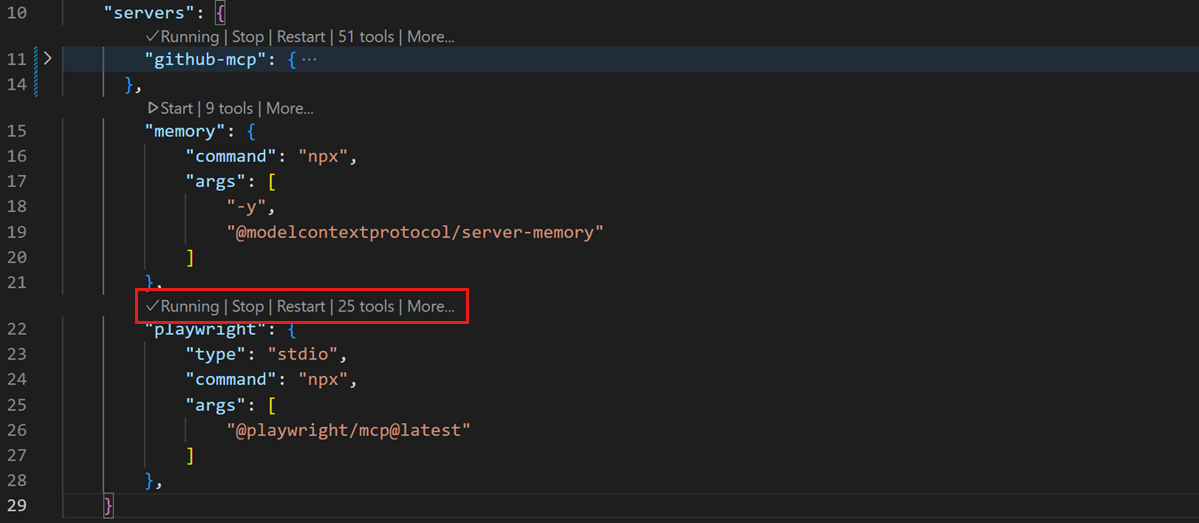
Use the **MCP: Open User Configuration** or **MCP: Open Workspace Folder Configuration** commands to access the MCP server configuration.
- Run the **MCP: List Servers** command from the Command Palette and select a server
### Automatically start MCP servers
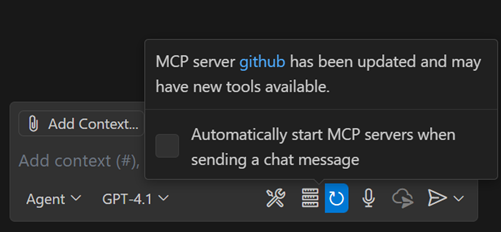
When you add an MCP server or change its configuration, VS Code needs to (re)start the server to discover the tools it provides.
You can configure VS Code to automatically restart the MCP server when configuration changes are detected by using the [chat.mcp.autostart](https://code.visualstudio.com/docs/copilot/customization/chat.mcp.autostart) setting (Experimental).
Alternatively, manually restart the MCP server from the Chat view, or by selecting the restart action from the [MCP server list](https://code.visualstudio.com/docs/copilot/customization/#_manage-mcp-servers).
### Command-line configuration
You can also use the VS Code command-line interface to add an MCP server to your user profile or to a workspace.
To add an MCP server to your user profile, use the command line option, and provide the JSON server configuration in the form .`--add-mcp` `{\"name\":\"server-name\",\"command\":...}`
VS Code also includes a URL handler that you can use to install an MCP server. To form the URL, construct an object in the same format as you would provide to , and then create the link by using the following logic:`obj` `--add-mcp`
TypeScript
```typescript
// For Insiders, use \`vscode-insiders\` instead of \`code\`
const link = \`vscode:mcp/install?${encodeURIComponent(JSON.stringify(obj))}\`;
```
This link can be used in a browser, or opened on the command line, for example via on Linux.`xdg-open $LINK`
## Find MCP servers
MCP is still a relatively new standard, and the ecosystem is rapidly evolving. As more developers adopt MCP, you can expect to see an increasing number of servers and tools available for integration with your projects.
The [curated list of MCP servers](https://code.visualstudio.com/mcp) on the VS Code website is a great starting point. Choose from different categories and directly install MCP servers in VS Code.
MCP's [official server repository](https://github.com/modelcontextprotocol/servers) provides official, and community-contributed servers that showcase MCP's versatility. You can explore servers for various functionalities, such as file system operations, database interactions, and web services.
VS Code extensions can also contribute MCP servers and configure them as part of the extension's installation process. Check the [Visual Studio Marketplace](https://marketplace.visualstudio.com/VSCode) for extensions that provide MCP server support.
## MCP server trust
MCP servers can run arbitrary code on your machine. Only add servers from trusted sources, and review the publisher and server configuration before starting it. Read the [Security documentation](https://code.visualstudio.com/docs/copilot/security) for using AI in VS Code to understand the implications.
When you add an MCP server to your workspace or change its configuration, you need to confirm that you trust the server and its capabilities before starting it. VS Code shows a dialog to confirm that you trust the server when you start a server for the first time. Select the link to MCP server in the dialog to review the MCP server configuration in a separate window.
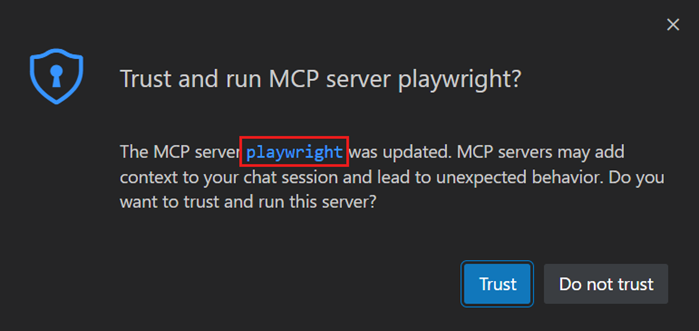
If you don't trust the server, it is not started, and chat requests continue without using the tools provided by the server.
You can reset trust for your MCP servers by running the **MCP: Reset Trust** command from the Command Palette.
Note
If you start the MCP server directly from the file, you are not prompted to trust the server configuration.`mcp.json`
## Synchronize MCP servers across devices
With [Settings Sync](https://code.visualstudio.com/docs/configure/settings-sync) enabled, you can synchronize settings and configurations across devices, including MCP server configurations. This allows you to maintain a consistent development environment and access the same MCP servers on all your devices.
To enable MCP server synchronization with Settings Sync, run the **Settings Sync: Configure** command from the Command Palette, and ensure that **MCP Servers** is included in the list of synchronized configurations.
## Configuration format
MCP servers are configured using a JSON file () that defines two main sections: server definitions and optional input variables for sensitive data.`mcp.json`
MCP servers can connect using different transport methods. Choose the appropriate configuration based on how your server communicates.
### Configuration structure
The configuration file has two main sections:
- **`"servers": {}`** - Contains the list of MCP servers and their configurations
- **`"inputs": []`** - Optional placeholders for sensitive information like API keys
You can use [predefined variables](https://code.visualstudio.com/docs/reference/variables-reference) in the server configuration, for example to refer to the workspace folder ().`${workspaceFolder}`
### Standard I/O (stdio) servers
Use this configuration for servers that communicate through standard input and output streams. This is the most common type for locally-run MCP servers.
| Field | Required | Description | Examples |
| --- | --- | --- | --- |
| `type` | Yes | Server connection type | `"stdio"` |
| `command` | Yes | Command to start the server executable. Must be available on your system path or contain its full path. | `"npx"`, , , `"node"` `"python"` `"docker"` |
| `args` | No | Array of arguments passed to the command | `["server.py", "--port", "3000"]` |
| `env` | No | Environment variables for the server | `{"API_KEY": "${input:api-key}"}` |
| `envFile` | No | Path to an environment file to load more variables | `"${workspaceFolder}/.env"` |
Note
When using Docker with stdio servers, don't use the detach option (). The server must run in the foreground to communicate with VS Code.`-d`
Example local server configuration
This example shows the minimal configuration for a basic, local MCP server using :`npx`
Use this configuration for servers that communicate over HTTP. VS Code first tries the HTTP Stream transport and falls back to SSE if HTTP is not supported.
| Field | Required | Description | Examples |
| --- | --- | --- | --- |
| `type` | Yes | Server connection type | `"http"`, `"sse"` |
| `url` | Yes | URL of the server | `"http://localhost:3000"`, `"https://api.example.com/mcp"` |
| `headers` | No | HTTP headers for authentication or configuration | `{"Authorization": "Bearer ${input:api-token}"}` |
Example remote server configuration
This example shows the minimal configuration for a remote MCP server without authentication:
JSON
```json
{
"servers":{
"context7":{
"type":"http",
"url":"https://mcp.context7.com/mcp"
}
}
}
```
### Input variables for sensitive data
Input variables let you define placeholders for configuration values, avoiding the need to hardcode sensitive information like API keys or passwords directly in the server configuration.
When you reference an input variable using , VS Code prompts you for the value when the server starts for the first time. The value is then securely stored for subsequent use. Learn more about [input variables](https://code.visualstudio.com/docs/reference/variables-reference#_input-variables) in VS Code.`${input:variable-id}`
**Input variable properties:**
| Field | Required | Description | Example |
| --- | --- | --- | --- |
| `type` | Yes | Type of input prompt | `"promptString"` |
| `id` | Yes | Unique identifier to reference in server config | `"api-key"`, `"database-url"` |
| `description` | Yes | User-friendly prompt text | `"GitHub Personal Access Token"` |
| `password` | No | Hide typed input (default: false) | `true` for API keys and passwords |
Example server configuration with input variables
This example configures a local server that requires an API key:
JSON
```json
{
"inputs":[
{
"type":"promptString",
"id":"perplexity-key",
"description":"Perplexity API Key",
"password":true
}
],
"servers":{
"perplexity":{
"type":"stdio",
"command":"npx",
"args":["-y","server-perplexity-ask"],
"env":{
"PERPLEXITY_API_KEY":"${input:perplexity-key}"
}
}
}
}
```
### Server naming conventions
When defining MCP servers, follow these naming conventions for the server name:
- Use camelCase for the server name, such as "uiTesting" or "githubIntegration"
- Avoid using whitespace or special characters
- Use a unique name for each server to avoid conflicts
- Use a descriptive name that reflects the server's functionality or brand, such as "github" or "database"
## Troubleshoot and debug MCP servers
### MCP output log
When VS Code encounters an issue with an MCP server, it shows an error indicator in the Chat view.
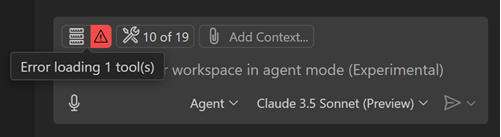
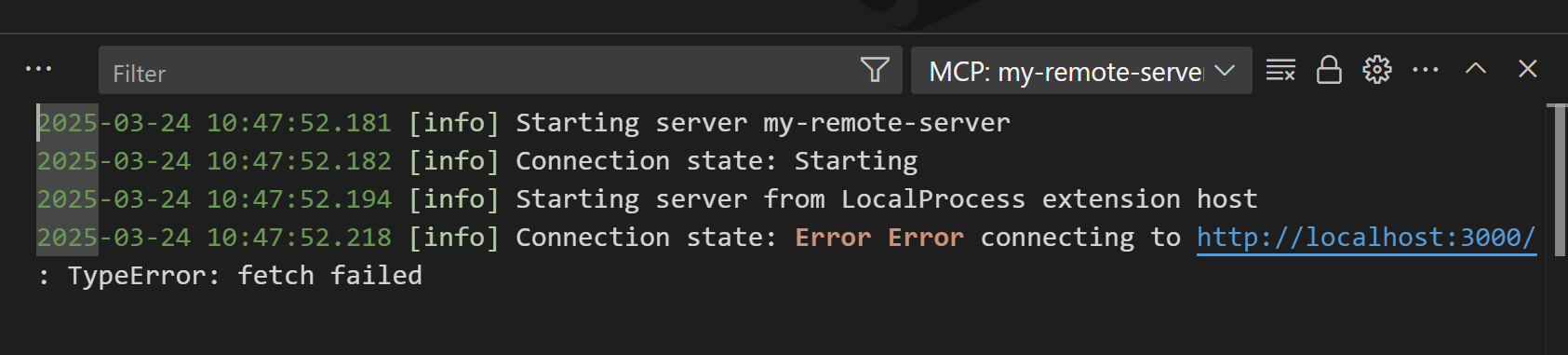
Select the error notification in the Chat view, and then select the **Show Output** option to view the server logs. Alternatively, run **MCP: List Servers** from the Command Palette, select the server, and then choose **Show Output**.
### Debug an MCP server
You can enable *development mode* for MCP servers by adding a key to the MCP server configuration. This is an object with two properties:`dev`
-`watch`: A file glob pattern to watch for files change that will restart the MCP server.
-`debug`: Enables you to set up a debugger with the MCP server.
JSON
```json
{
"servers":{
"gistpad":{
"command":"node",
"args":["build/index.js"],
"dev":{
"watch":"build/**/*.js",
"debug":{"type":"node"}
},
```
Note
We currently only support debugging Node.js and Python servers launched with and respectively.`node``python`
## Frequently asked questions
### Can I control which MCP tools are used?
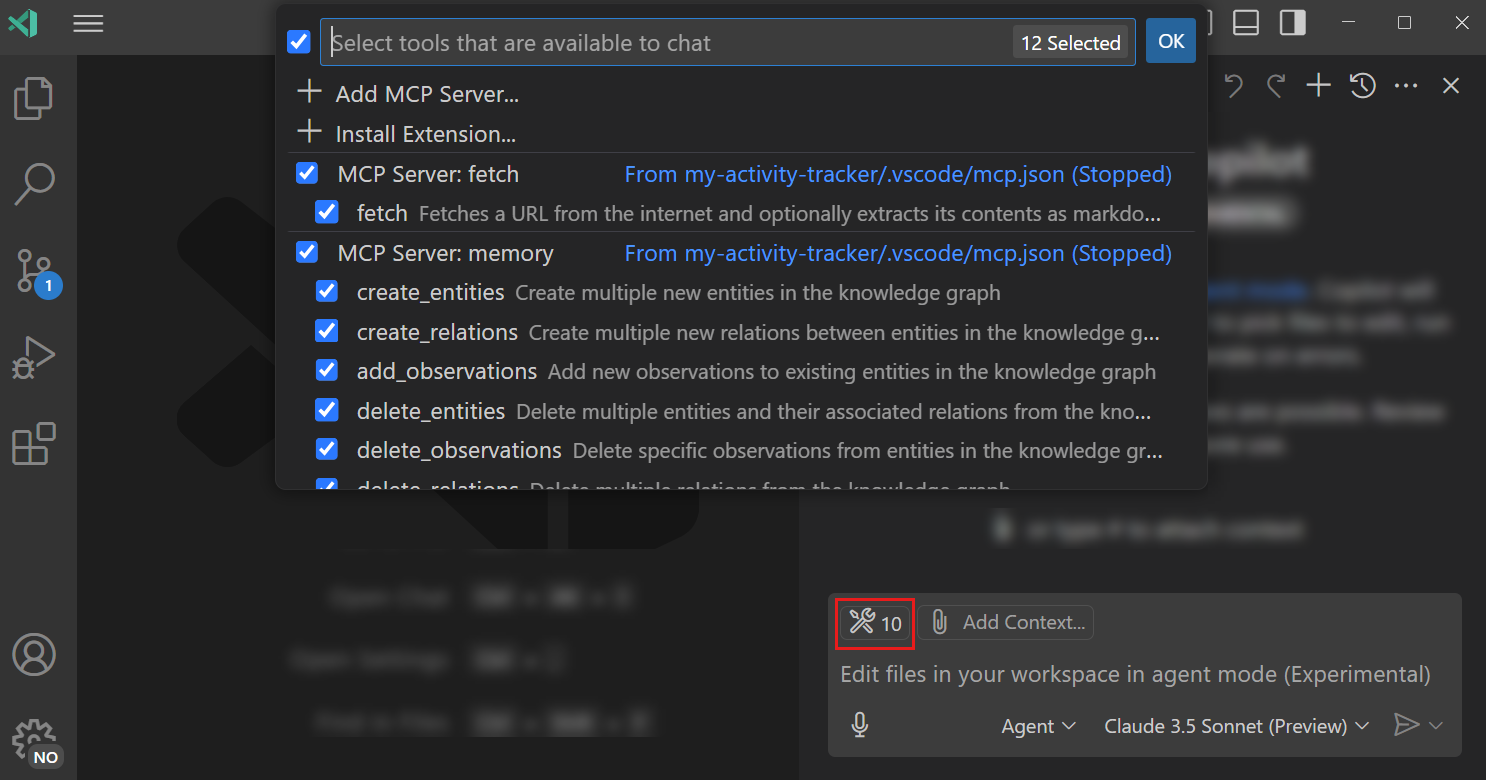
- Select the **Tools** button in the Chat view when in agent mode, and toggle specific tools on/off as needed.
- Add specific tools to your prompt by using the **Add Context** button or by typing .`#`
- For more advanced control, you can use to fine-tune tool usage.`.github/copilot-instructions.md`
### The MCP server is not starting when using Docker
Verify that the command arguments are correct and that the container is not running in detached mode ( option). You can also check the MCP server output for any error messages (see [Troubleshooting](https://code.visualstudio.com/docs/copilot/customization/#_troubleshoot-and-debug-mcp-servers)).`-d`
A chat request can have a maximum of 128 tools enabled at a time due to model constraints. If you have more than 128 tools selected, reduce the number of tools by deselecting some tools or whole servers in the tools picker in the Chat view, or ensure that virtual tools are enabled ([github.copilot.chat.virtualTools.threshold](https://code.visualstudio.com/docs/copilot/customization/github.copilot.chat.virtualTools.threshold)).
- [VS Code curated list of MCP servers](https://code.visualstudio.com/mcp)